Bitcon - Data Storage Unit Converter


Bitcon converts digital storage sizes. Type a number, choose the unit you have and the unit you want, and the answer appears straight away: how many gigabytes are in 5,000 megabytes, how many bits are in a terabyte, or how many 700 MB files fit on a 64 GB card.
It is useful when you are comparing phone storage plans, estimating backup sizes, checking whether a video will fit on a USB stick, or studying for a computing course where the difference between bits and bytes matters. Every unit from a single bit up to a yottabyte is supported.
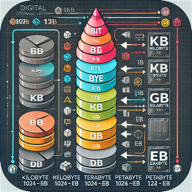
Bitcon uses the 1024-based steps that operating systems traditionally use, so 1 KB is 1,024 bytes and 1 MB is 1,024 KB. The guide below explains why drive makers count differently and what that means for the space you actually get.
The app runs entirely in your browser. What you enter is saved only on this device.
How to use Bitcon
- Enter a value. On the Convert tab, type the number you want to convert into the Enter Value field.
- Pick the units. Choose the From Unit and the To Unit, from bit and byte up to yottabyte (YB). Use the swap button to reverse the direction.
- Read and copy the result. The Conversion Result updates as you type. Tap Copy to put the number on your clipboard.
- Use a quick conversion. Tap one of the Quick Conversion buttons, such as MB → GB or GB → TB, to set both units in one step.
- Adjust precision. Use the precision button in the top bar to change the number of decimal places or switch to scientific notation for very large or very small numbers.
- Compare several units. Open Compare Units, select the units you are interested in, and see the same value expressed in each of them at once.
- Save and reuse. Save the current pair of units as a template on the Templates tab, and revisit earlier conversions on the History tab, where you can reuse one with a tap.
Features
- Converts between bit, byte, KB, MB, GB, TB, PB, EB, ZB and YB using 1024-based steps
- Live results while typing, with a one-tap unit swap and copy button
- Quick conversion buttons for common pairs like MB → GB
- Adjustable decimal places and optional scientific notation
- Unit comparison that shows one value in several units side by side
- Conversion history with reuse and clear options, plus export to a JSON file
- Saved templates for conversions you repeat often
- Built-in calculator for quick arithmetic before converting
- Theme customization with an accent color and font size
Bits, bytes and why your drive looks smaller than advertised
Bits and bytes
A bit is the smallest unit of digital information: a single 0 or 1. A byte is a group of 8 bits, enough to store one simple text character. Storage sizes are almost always given in bytes (written with a capital B), while network speeds are usually given in bits per second (a lowercase b).
That difference catches many people out. An internet connection advertised as 100 Mbps moves about 12.5 megabytes per second at best, because you divide by 8 to get from bits to bytes. In practice, overheads make real downloads a little slower still.
Two ways to count a kilobyte
Computers work in powers of two, so it became common to call 1,024 bytes a kilobyte, 1,024 kilobytes a megabyte, and so on. Storage manufacturers, on the other hand, use the decimal meaning of the prefixes: 1 kilobyte is 1,000 bytes, 1 gigabyte is 1,000,000,000 bytes.
To remove the confusion, standards bodies introduced separate names for the binary units: kibibyte (KiB), mebibyte (MiB), gibibyte (GiB) and tebibyte (TiB). You will see these in some software and in technical documentation, but many programs still write KB, MB and GB while meaning the 1024-based values. Bitcon follows that 1024-based convention.
Where the "missing" space goes
A drive sold as 1 TB holds 1,000,000,000,000 bytes. Divide that by 1,024 four times and you get roughly 931 in 1024-based units, which is why a computer may report a new 1 TB drive as about 931 GB. Nothing is missing; the same number of bytes is simply being counted with a different unit.
On top of that, the file system, the operating system and preinstalled apps take some space, so the free space you see on a new phone or laptop is lower again.
Handy rules of thumb
Each step up the ladder (KB, MB, GB, TB) is roughly a thousand times bigger than the last. The gap between the binary and decimal readings grows at each step: about 2.4% at the kilobyte level, about 7% at the gigabyte level and about 10% at the terabyte level.
When estimating whether files will fit, leave a margin. Storage that is nearly full tends to slow devices down, and many systems need free space for updates and temporary files.
Frequently asked questions
Does Bitcon use 1000 or 1024?
It uses 1024-based steps: 1 KB is 1,024 bytes and 1 GB is 1,024 MB. To compare with decimal figures printed on drive packaging, keep in mind that the two systems differ by a few percent.
Where is my history saved?
History, templates and settings are stored only in this browser, with no account. Clearing your browser data deletes them. You can export your history as a JSON file to keep a copy.
Can I import a history file?
Not at the moment. Export creates a file you can keep or open elsewhere, but there is no import option in the web version.
How do I convert internet speeds?
Bitcon converts amounts of data rather than speeds. As a quick rule, divide a speed in megabits per second by 8 to get megabytes per second, for example 80 Mbps is about 10 MB per second before overheads.
How is the web version different from the phone app?
The conversions are the same. In the browser, exporting history downloads a file instead of using the phone's share sheet, and everything is stored in the browser rather than on the phone.
Why is the result shown in scientific notation?
Very large or very small results, such as bits in a yottabyte, are easier to read that way. You can turn scientific notation on or off and set decimal places in the precision settings.
Limitations of the web version
- Only 1024-based units; decimal (1000-based) and KiB/MiB naming are not offered as separate options
- History cannot be imported back from a file
- Data is kept in this browser only and is not synced
- Network speed units such as Mbps are not listed separately; convert via bits
Phone app
Bitcon is also available as an app for phones and tablets:
App Store (iPhone, iPad) Google Play (Android)