How to Add a Date Stamp to Photos on Android
Android phones save the date and time inside every photo, but most do not show it on the image. If you want the date visible, for a printed album, a progress record, a work report or just the look of an old film camera, you have to add it.
How you do that depends on whether you are taking new photos or stamping ones you already have, and on your phone's brand, because camera apps differ between manufacturers. This guide covers the built-in options and their limits, then how to stamp a batch of existing photos, each with its own date.
First, check the date saved in the photo
Every photo taken with the camera stores its date and time in its metadata, also called EXIF data. In Google Photos, open a photo and swipe up, or tap the three-dot menu, to see the details. Many manufacturers' gallery apps have a similar Details or info option.
If the date is wrong, Google Photos lets you edit it from the same details panel on many versions; look for an edit (pencil) icon next to the date. Photos saved from messaging apps or social networks, and screenshots, often carry the date they were saved rather than the date they were taken.
Option 1: A watermark setting in your camera app
Some phone makers include a watermark option in their camera app that can add the date and time to new photos. On many recent Samsung Galaxy phones, for example, it is in the camera settings under Watermark; some Xiaomi and other models have similar settings. Names and options vary by brand, model and software version, and many phones, including Pixel phones, do not have it.
- Open the camera app and go to its settings.
- Look for an option called Watermark, Timestamp or similar.
- Turn it on and choose to include the date and time if there is a choice.
- Take a test photo and check the result in your gallery.
Limitations: it only applies to new photos taken after you turn it on, you usually cannot choose the format or style in detail, and every photo gets it until you turn it off.
Option 2: Type the date with Google Photos markup
For a few existing photos, the editor in Google Photos can add text:
- Open the photo in Google Photos and tap Edit.
- Find the Markup tool and choose Text.
- Type the date, pick a color, and move the text where you want it.
- Tap Done, then save a copy.
Limitations: you must type each date yourself, size and placement are hard to keep consistent across photos, and it is slow for more than a handful. The editor's layout changes between versions, so the menu may look slightly different on your phone.
Option 3: Stamp existing photos in a batch
To date a whole folder of existing photos, for example a trip, a renovation or a season of garden pictures, a batch date stamp app is the practical choice. It reads each photo's own date from its metadata, so nothing has to be typed. In DateStamp:
- Tap Gallery and select up to 30 photos, or Camera to take a new one. JPEG, PNG and HEIF are supported.
- In Stamp Settings, choose Date, Time or Both, and a format: system, ISO (2025-08-01), US (08/01/2025), EU (01/08/2025) or custom.
- Pick one of nine positions, or drag the stamp in the preview and pinch to resize it.
- Choose small, medium or large text, white, black or auto-contrast color, opacity, and bold.
- Save the style as one of up to five presets so later batches match.
- Preview, swipe to compare before and after, and save. Your originals are left unchanged.
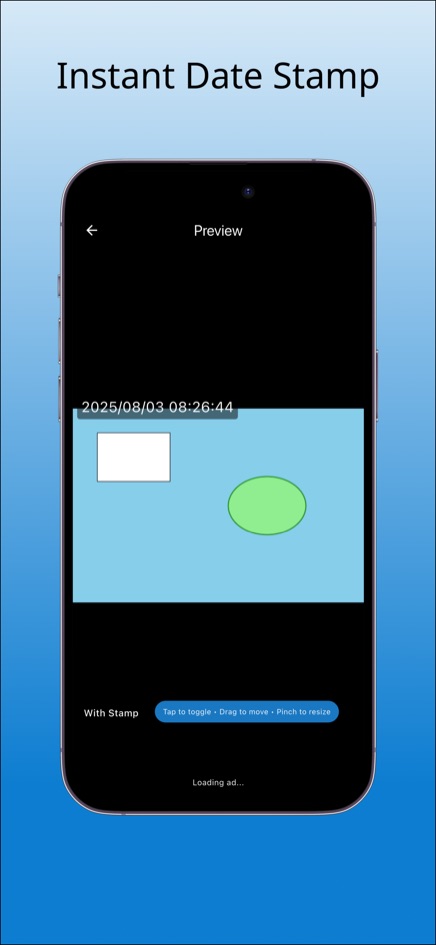
DateStamp is on Google Play for Android and the App Store for iPhone, and there is a free web version that processes photos on your device without uploading them. If you have more than 30 photos, work in batches with the same preset.
Which option should you use?
- Every future photo dated, simple style: the camera watermark, if your phone has it.
- One or two existing photos, or free text such as a caption: Google Photos markup.
- Many existing photos with their own correct dates and a consistent style: a batch stamp app.
- Photos without an original date: set the date in the details panel first, or use a custom date in the app.
Tips before you stamp
- Check one photo's date against what you remember before stamping a whole batch. Cameras with a wrong clock or time zone produce wrong stamps.
- Pick a date format your audience will read correctly. The ISO format, year first, avoids the US and European month-day confusion.
- Keep the stamp small and in a corner, with a contrasting color, so it is legible but not distracting.
- Keep the originals. A date stamp is part of the image once saved, and a clean copy is useful for future prints or edits.
- For records such as rental inspections or repairs, a visible date helps, but keep the original files too, since they carry the full metadata.
Frequently asked questions
Does Android have a built-in date stamp?
It depends on the phone. Some manufacturers' camera apps, such as those on many recent Samsung Galaxy phones, have a watermark option for new photos. Many phones do not, and none of these settings stamp photos you already took.
Can I add the date to old photos?
Yes. Use Google Photos markup for a few, or a batch app such as DateStamp, which reads each photo's original date automatically.
Why does DateStamp show today's date on a photo?
That photo probably has no original date in its metadata, which is common for screenshots and images saved from social media. Use the custom date option to set the right date.
Are my photos uploaded?
Not in the web version, which stamps photos inside your browser and downloads the results. The phone apps save stamped copies to your device.