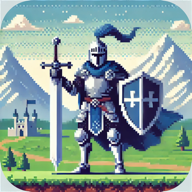
Dotmake - Pixel Art Maker & Pixel Editor


Dotmake is a no-fuss pixel art editor. You pick a grid, choose a colour and tap squares to fill them in, just as artists did for the sprites and icons of early video games. There are no brushes or blending to learn, which makes it a relaxed way to sketch a character, an emoji-style icon, a tiny landscape or a bead and cross-stitch pattern.
It works well for beginners, children with a parent nearby, game developers mocking up a sprite, and anyone who enjoys the puzzle of saying a lot with very few pixels. When you are happy with the result, download it as a PNG to share or keep.
Dotmake runs in your browser without an account. Your drawing is not stored on any server, so remember to download what you want to keep.
The app runs entirely in your browser. What you enter is saved only on this device.
How to use Dotmake
- Pick a canvas size. Open the grid size option and choose 8 x 8, 16 x 16, 24 x 24, 32 x 32, 48 x 48 or 64 x 64. Smaller grids are quicker and more forgiving.
- Choose a colour. Tap a swatch in the colour palette, or open the colour picker to choose from a wider set.
- Draw with the pen. Tap or drag across squares to colour them. The eraser returns squares to the background colour.
- Fill areas and pick colours. The fill tool floods a connected area with the current colour. The eyedropper copies the colour of any square you tap.
- Zoom, pan and toggle the grid. Use zoom in and out, switch to the hand tool to move the canvas, reset the view, and turn grid lines on or off to see how the art will really look.
- Fix mistakes. Undo and redo step through recent changes. Clear Canvas from the menu starts over, and you can change the background colour there too.
- Save your work. Use the save button to download the picture as a PNG. Export downloads the project as a JSON file containing the pixel data.
Features
- Six grid sizes from 8 x 8 up to 64 x 64
- Pen, eraser, fill bucket and eyedropper
- Preset colour palette plus a colour picker
- Adjustable background colour
- Grid lines on or off, zoom from half size to triple size, and a pan tool
- Undo and redo
- PNG download of your artwork
- Project export as a JSON file
Pixel art basics for your first drawings
Start smaller than you think
A 16 x 16 grid has only 256 squares, and that limit is a help rather than a handicap. It forces you to decide what really matters, such as the eyes of a character or the outline of a sword. Classic game sprites were often 16 x 16 or 32 x 32. Move up to 48 or 64 only when you need detail, because every extra row multiplies the work.
Use a limited palette
Good pixel art usually uses far fewer colours than you might expect, often between four and sixteen. For each main colour, pick a mid tone, a darker shade for shadow and a lighter one for highlights. Shifting shadows slightly towards blue or purple and highlights towards yellow tends to look livelier than simply mixing in black and white.
Clean lines and avoiding jaggies
Lines look smoothest when the steps are regular, for example two pixels across then one down, repeated. Irregular steps such as 3, 1, 2, 1 create bumps called jaggies. Also watch for doubled corners, where two pixels meet at both the side and the diagonal; removing one usually makes an outline crisper. Single-pixel outlines in a darker shade of the fill colour are often softer than pure black.
Shading and dithering
Pick one light source, such as top left, and keep it the same across the whole drawing. Place highlights on the faces that point towards it and shadows on the opposite side. Dithering, a checkerboard of two colours, can suggest a gradient or texture when you have few colours, but use it sparingly or the image becomes noisy.
Scaling up without blurring
Pixel art should be enlarged by whole-number multiples, such as 2x, 4x or 8x, with nearest-neighbour scaling. Smooth or bilinear scaling blurs the edges and loses the crisp look. Most image editors offer a nearest-neighbour or "hard edges" option when resizing.
Practise with references
Recreating a simple object you can see, such as a mug, a leaf or a key, is excellent practice. Look at its main shape, block it in with a single colour, then add outline, shadow and one highlight.
Frequently asked questions
Is my drawing saved if I close the page?
No. The web version keeps the canvas only while the page is open. Download a PNG or export the JSON file before closing or refreshing the tab.
Where is my data stored?
Your artwork is never uploaded. While you draw it exists only in this browser tab, and files you save go to your device's downloads folder. A few app settings may be kept in this browser's storage; clearing site data removes them.
What size is the downloaded PNG?
The PNG is a capture of the canvas as shown on screen, so it is larger than the grid itself. If you need an exact pixel-per-square file, resize the image with nearest-neighbour scaling in an image editor.
Can I open a JSON project again?
The web version can export a project as JSON, but it does not have an import option, so treat the PNG as your main saved copy.
Is there a line or shape tool?
No. Drawing is done with the pen, eraser, fill and eyedropper. Dragging with the pen fills every square along your path.
How does the web version differ from the phone app?
Drawing tools are the same. On iPhone and Android the PNG is saved to the photo library rather than downloaded, and the app includes optional purchases that the web page does not offer.
Limitations of the web version
- Artwork is not kept between visits; download it before leaving
- No import of exported JSON projects
- No line, rectangle or circle tools
- Undo history covers recent steps only
Phone app
Dotmake is also available as an app for phones and tablets:
App Store (iPhone, iPad) Google Play (Android)