Dotcam - Photo to Pixel Art


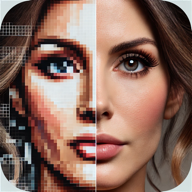
Dotcam turns an ordinary photo into pixel art, the blocky look of old video games and early computer graphics. You choose a picture, decide how big each pixel block should be, optionally limit the palette to a handful of colors, and the app redraws the image in that style.
It is made for anyone who wants a retro avatar, a stylized picture for a post, a reference for cross-stitch or bead patterns, or simply wants to see what a favorite photo would look like on a 1990s handheld console. You do not need any drawing skills; the app does the conversion and you tweak the settings until it looks right.
The image is processed inside your browser. Your photo is not uploaded to a server, and the finished picture is saved to your device as a PNG file when you download it.
The app runs entirely in your browser. What you enter is saved only on this device.
How to use Dotcam
- Choose a photo. Tap "Select from Gallery" to pick an image file. On phones, "Take Photo" lets the browser open the camera or the photo picker, depending on your device.
- Generate the pixel art. Press "Generate Pixel Art". If "Auto Process on Selection" is turned on in Settings, the conversion starts as soon as you pick the image.
- Adjust the pixel size. Open Basic Settings and move the Pixel Size slider (2 to 30). Small values keep more detail; large values give a chunky, iconic look.
- Limit the colors. Turn on Reduce Colors and pick a color count from 2 to 64. Switch on Dithering to blend between the remaining colors with patterns of dots.
- Add grid lines or a filter. Enable Show Gridlines and choose their width and color, or pick a filter such as Sepia, Monochrome, Gameboy, Blueprint, Vaporwave, Scanlines or CRT Display.
- Try a preset. Apply a ready-made preset such as 8-bit Retro, Gameboy, Grid Display, Blueprint or Vaporwave, or save your current settings as a new preset with your own name.
- Compare and refine. Switch between the Original and Pixel Art tabs to compare, and use Undo and Redo to step back through your changes.
- Download. Save the result. In the browser, the picture is downloaded as a PNG file you can find in your downloads folder.
Features
- Converts any photo into pixel art with adjustable block size (2 to 30)
- Color reduction from 2 to 64 colors, with optional Floyd-Steinberg dithering
- Grid lines between pixels with adjustable width and color
- Background color choice for the output
- Filters: Sepia, Monochrome, Invert Colors, Vaporwave, Gameboy, Blueprint, Scanlines and CRT Display
- Built-in presets plus your own saved presets
- Undo and redo while experimenting
- Original and Pixel Art tabs for side-by-side comparison
- Processing happens in the browser; results download as PNG files
Getting good results from photo-to-pixel-art conversion
What pixel art actually is
Pixel art is an image where every individual pixel is visible and deliberate. Early game consoles and home computers had very low resolutions and tiny color palettes, so artists had to suggest faces, light and texture with only a few square dots. That constraint is what gives the style its charm: shapes become simple, outlines are crisp, and color is used sparingly.
A converter imitates this by dividing the photo into a grid of blocks, filling each block with one color, and, if you ask it to, reducing the total number of colors in the picture.
Choosing a pixel size
Think about how many blocks will span the main subject. A portrait where the face is only eight blocks wide becomes an abstract icon; at thirty or forty blocks across, eyes and a mouth start to read clearly. Start in the middle of the slider and move it until the subject is still recognizable but the blockiness is obvious.
Photos with a single clear subject and a plain background convert far better than busy scenes. Crop tightly around what matters before you start, and high-contrast lighting will survive the conversion better than soft, flat light.
Palettes and color counts
Classic hardware often worked with very few colors. The original Game Boy screen showed four shades of green-gray, which is why the Gameboy filter gives such a recognizable look. Many 8-bit era systems had palettes of a few dozen colors, and individual sprites used only three or four of them.
Try 8 to 16 colors for a balanced retro feel. Going down to 2 to 4 colors creates a bold, poster-like image. If skin tones or skies look patchy, add a few colors back rather than reaching for the maximum.
When to use dithering
Dithering places dots of two available colors next to each other so that, from a distance, your eye blends them into a shade that is not actually in the palette. The Floyd-Steinberg method spreads the rounding error of each pixel onto its neighbors, which produces smooth-looking gradients.
It works well for skies, shadows and gradients with a low color count. On very small images or large pixel sizes it can look noisy, so toggle it on and off and keep whichever reads better.
Using grid lines for crafts
Grid lines draw a thin border around every block, which turns the result into a chart. That is useful if you plan to recreate the image with cross-stitch, perler or fuse beads, mosaic tiles or blocks in a building game: each square is one stitch, bead or block. Choose a grid color that contrasts with the image so the squares are easy to count.
Frequently asked questions
Are my photos uploaded anywhere?
No. The conversion runs inside your browser and the finished image is downloaded straight to your device. Nothing is sent to a server for processing.
Where are my settings and presets stored?
Your settings and any presets you save are kept only in this browser, with no account. Clearing your browser data deletes them, and they do not sync to other devices.
Where does the finished image go?
It downloads as a PNG file named like pixel_art_ followed by a number. Look in your browser's downloads folder, or the Files app on a phone.
Why doesn't the Take Photo button open my camera?
On the web, the browser decides how to handle it. Some phones offer the camera, others show the photo picker, and desktop computers usually show a file dialog.
How is the web version different from the phone app?
The iPhone and Android apps save results to your photo library and keep an in-app gallery of past conversions. The web version downloads each result as a file instead and has no saved-images gallery.
Why does processing take a few seconds?
Very large photos contain millions of pixels to recolor. Smaller or cropped images convert faster, and the result will look the same at pixel-art scale.
Limitations of the web version
- No in-app gallery of saved images on the web; each result is downloaded as a file
- Saving directly to the photo library is not available in the browser
- Camera access depends on your browser and device
- Very large images can take noticeably longer to process on older devices
Phone app
Dotcam is also available as an app for phones and tablets:
App Store (iPhone, iPad) Google Play (Android)