How to Finish Your Gaming Backlog (Without Burning Out)
Sales, bundles and subscription catalogs make it easy to own far more games than you will ever have time to play. The result is the familiar backlog: a pile of unstarted and half-finished games that feels more like homework than a hobby.
Finishing a backlog is less about playing more hours and more about making decisions. This guide walks through a method that works for most people: get everything into one list, sort it honestly, limit how many games are in progress, and track enough to see the pile shrink. It also compares paper, spreadsheets and apps, and shows how to do it in GameTracker.
Step 1: Get every game into one list
A backlog spread across several consoles, launchers and a shelf of physical boxes is hard to judge because you never see it all at once. Spend one session writing everything down:
- Console libraries: PlayStation, Nintendo Switch, Xbox and anything older you still plug in.
- PC launchers: Steam and any other store you have bought from.
- Physical games, including ones still in shrink wrap.
- Mobile games you paid for or keep meaning to try.
- Games you are partway through, even if you have not touched them in months.
For each game, note the platform and whether you have started it. Do not judge anything yet; the goal is just a complete picture.
Step 2: Sort the pile honestly
Go through the list and give each game one of a few labels. Being honest here is what makes the rest work:
- Playing: games you are actively playing right now.
- Backlog: games you genuinely want to play or finish.
- Not played: games you own but have no real plan for yet.
- Completed: games you have finished, or have played as much as you want to.
The most useful move is to let go of games. If you bought something in a sale and the idea of starting it feels like a chore, it is fine to leave it in Not played indefinitely, or to count a game as done when you have had enough of it. A backlog only shrinks if "I'm done with this" is an allowed answer.
Step 3: Limit how many games you play at once
Starting a new game is exciting; the middle of a long game is where most of them stall. A simple rule helps: keep only one or two games in Playing at any time, and do not start a new one until one of them is finished or dropped.
Many players keep one long game and one short one in progress, so there is always something that fits the time available. A 40-hour RPG suits a free weekend; a short indie game fits a few evenings.
Step 4: Choose the next game on purpose
When a slot opens up, pick from the Backlog list rather than whatever is newest. Some ways to choose:
- Shortest first: finishing a few short games quickly builds momentum.
- Closest to done: games you left at 70% or 80% need the least time to complete.
- Platform rotation: alternate between consoles so none sits forgotten.
- Mood: if you are tired after work, choose something relaxing rather than demanding.
- Random: when you cannot decide, let a coin or a wheel choose from your top few.
Step 5: Track progress so you can see it working
A backlog feels endless when nothing seems to change. Recording a little information each time you play shows the movement:
- Update the status when you start, finish or drop a game.
- Note a rough progress percentage, such as 30% or 75%, based on chapters or the game's own completion screen.
- Write a short note on where you left off: the chapter, the next objective, or the boss you were stuck on. This makes returning after a break much easier.
- Record the date you last played, so you can spot games that have quietly stalled.
- Once a month, look at how many games are completed versus waiting.
Finally, slow the inflow. Before buying a new game, check whether something similar is already waiting in your backlog.
Notebook, spreadsheet or backlog app?
Notebook or notes app
Quick to start and fine for a short list. It gets messy once you have dozens of games, and you cannot easily filter by platform or status or see totals.
Spreadsheet
Flexible and good for large collections: columns for platform, status and progress, with filters and counts. It is less pleasant to update from the sofa on a phone, and it takes some setup. Our guide to a video game collection spreadsheet covers this approach in detail.
Backlog tracker app
Quick to update on a phone, with statuses, filters and statistics built in. Some apps fill in game details from an online database; simpler ones, like GameTracker, have you type titles yourself, which takes a little longer but works for any game, including retro and physical-only releases.
How to track your backlog in GameTracker
GameTracker follows the method above:
- Tap + to add each game. Enter the title and choose the platform: PS5, PS4, Nintendo Switch, Xbox, PC, Steam, Mobile or Other.
- Set the status to Playing, Not Played, Completed or Backlog, and optionally choose a genre such as RPG, Action or Puzzle.
- Drag the progress slider from 0 to 100%, and use the memo to note where you left off.
- Add a cover image, such as a photo of the box or a screenshot, so the library is easy to scan.
- After a session, open the game and mark today as the last played date with one tap.
- Use search and the status or platform filters to see, for example, everything in Backlog on Switch.
- Check the Statistics tab for totals by status and platform and your average progress.
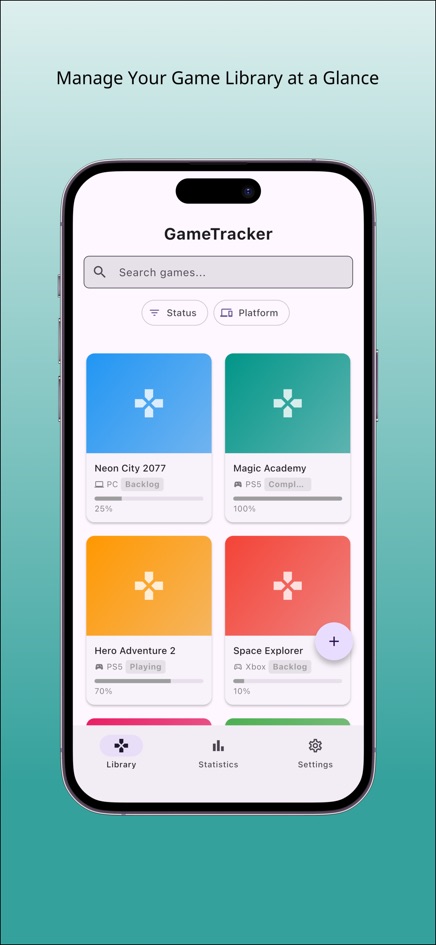
The web version keeps your library in one browser on one device. The iPhone and Android apps can also take a cover photo directly with the camera.
Frequently asked questions
How many games should I play at once?
One or two works for most people. More than that and games tend to stall in the middle. Keep one long and one short game going if you like variety.
Is it okay to drop a game without finishing it?
Yes. If you are not enjoying a game, marking it as done and moving on is a perfectly good way to shrink a backlog.
How do I estimate progress in a game?
Use the game's own completion percentage if it has one, or count chapters or main missions. A rough number is enough to show which games are close to done.
Does GameTracker import my Steam or console library?
No. You add each game yourself. That means it works for any platform, including retro and physical-only games, but there is no automatic import.
Where is my GameTracker data stored?
On your device. The web version stores the library and cover images in your browser, with no account; clearing browser data removes them.