Video Game Collection Spreadsheet: What Columns to Use and How to Set It Up
Once a game collection grows past a shelf or two, it gets hard to remember what you own, on which system, and what you have actually played. A spreadsheet is the classic answer, and with a sensible set of columns it can answer most questions in seconds.
This guide explains which columns to include, how to set up a collection sheet in Excel or Google Sheets, a few formulas that make it more useful, and the honest pros and cons compared with a collection app. It ends with how to do the same thing in GameTracker.
The columns worth having
Start with a small set. Every extra column is something you have to fill in for every game, so add more only if you will use them:
- Title: the game's name as it appears on the box or store page.
- Platform: PS5, Switch, Xbox Series, PC (Steam) and so on. Use the same spelling every time so filters work.
- Format: physical or digital. Collectors often add a condition note for physical copies, such as loose, boxed or complete in box.
- Status: for example Not played, Playing, Completed, Backlog.
- Progress: a percentage or a simple note such as "chapter 6".
- Genre: RPG, action, puzzle, racing and so on.
- Last played: the date you last picked it up.
- Notes: where you left off, edition, region or anything else you want to remember.
Some collectors also track purchase date, price paid or region. These are useful for insurance or valuing a collection, but they are optional.
How to set up the spreadsheet
- Create a new sheet and type your column names in the first row. Freeze that row (View > Freeze in Google Sheets or Excel) so it stays visible as you scroll.
- Turn on filters for the header row. In Google Sheets choose Data > Create a filter; in Excel, select the header and choose Sort & Filter > Filter.
- Add drop-down lists for Platform, Format and Status using data validation. This keeps spellings consistent, which matters for counting and filtering later.
- Format the Last played column as a date, and the Progress column as a percentage if you use numbers.
- Enter your games. Work one platform or one shelf at a time so you do not miss anything.
- Sort by Title or Platform, and use filters to answer questions like "which Switch games have I not played?"
Useful formulas
A summary area at the top or on a second tab turns a long list into numbers you can read at a glance. These examples assume Platform is column B and Status is column D:
- Total games: =COUNTA(A2:A) in Google Sheets, or =COUNTA(A2:A1000) in Excel.
- Games per platform: =COUNTIF(B:B, "Switch").
- Games by status: =COUNTIF(D:D, "Backlog").
- Completed share: =COUNTIF(D:D, "Completed") / COUNTA(A2:A), formatted as a percentage (in Excel, use A2:A1000).
- Unplayed games on one platform: =COUNTIFS(B:B, "PS5", D:D, "Not played").
Conditional formatting can colour each row by status, which makes a long sheet much easier to scan.
Keeping the sheet up to date
The hard part of any collection sheet is not building it but keeping it accurate. A few habits help:
- Add new games the day you buy them, before they go on the shelf or into the library.
- Update the status and last played date when you finish a session, not weeks later.
- Do a quick check every few months: look for games marked Playing that you have not touched in a long time.
- Keep a backup copy, especially of a large collection with purchase details.
Spreadsheet or collection app?
Where a spreadsheet wins
You decide every column, so it can hold anything: regions, prices, serial numbers, editions. Formulas and pivot tables can answer almost any question, and the file is easy to back up and share. For a large physical collection with values and conditions, a spreadsheet is hard to beat.
Where an app wins
Updating a spreadsheet on a phone is fiddly: small cells, scrolling sideways and typing dates. A collection app gives you large buttons for status, a progress slider, a one-tap last played date, cover images and ready-made statistics. The trade-off is that you are limited to the fields the app provides.
Many people use both: an app for day-to-day tracking of what they are playing, and a spreadsheet for the detailed collector records.
How to track your collection in GameTracker
GameTracker covers the core columns of a collection sheet without any setup:
- Tap + and enter the game's title.
- Choose the platform (PS5, PS4, Nintendo Switch, Xbox, PC, Steam, Mobile or Other) and the status (Playing, Not Played, Completed or Backlog).
- Optionally pick a genre, set progress from 0 to 100%, and write a memo for format, edition or where you left off.
- Tap the image area to add a cover, such as a photo of the box.
- Use search and the status or platform filters in place of spreadsheet filters.
- Open the Statistics tab for the totals a formula sheet would give you: total games, counts by status and platform, and average progress.
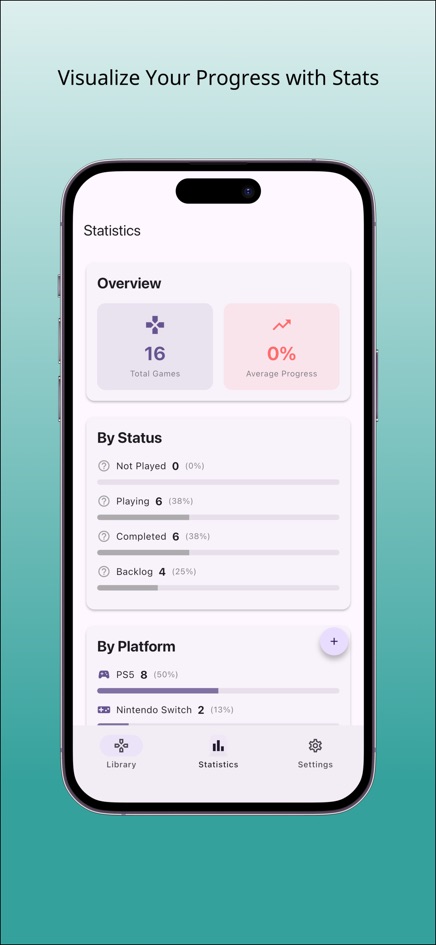
GameTracker has no price or purchase date fields and does not export to a spreadsheet, so keep a sheet as well if you need those collector details. Get it on iPhone or Android, or see how to finish your gaming backlog.
Frequently asked questions
Is there a free video game collection spreadsheet template?
You can make one in a few minutes: a header row with Title, Platform, Format, Status, Progress, Genre, Last played and Notes, plus filters and drop-down lists. Google Sheets and Excel are both free to use for this.
Google Sheets or Excel for a game collection?
Either works. Google Sheets is easier to open on a phone and share; Excel has more powerful pivot tables. The formulas in this guide work in both.
How do I count games per platform?
Use COUNTIF on the Platform column, for example =COUNTIF(B:B, "Switch"). Keep platform names consistent with a drop-down list so the counts are accurate.
Can GameTracker track the price I paid?
No. It records title, platform, status, progress, genre, last played date, cover image and a memo. You could note a price in the memo, but there are no totals for spending.
Can I add the same game on two platforms?
Yes. Add it twice with different platforms, the same way you would add two rows in a spreadsheet.