How to Make a Tier List (on Phone, PC or Paper)
A tier list sorts things into ranked groups instead of a strict 1-to-100 order. The familiar version has rows labelled S, A, B, C, D and F, with the best items at the top. It works for almost anything: game characters, anime, snacks, albums, movies, even household chores.
This guide walks through making a tier list from start to finish: picking a topic, gathering items, setting up tiers, ranking them so the result is fair and readable, and sharing it. It compares the main ways to make one, then shows how to do it on your phone or in a browser with Tier.
Step 1: Pick a topic and a rule
A tier list is clearer when everyone knows what is being ranked and by what standard. Decide two things before you start:
- The set: for example, every main character in a series, every fast-food chain near you, or every game you finished this year. A defined set stops arguments about what is missing.
- The rule: are you ranking by personal enjoyment, by strength in a competitive game, by value for money? Write the rule in the title, such as "Pizza toppings ranked by how much I like them".
Between 10 and 40 items is a comfortable size. Fewer than that, and most tiers are empty; more, and the list becomes hard to read on a phone screen.
Step 2: Gather your items
Items can be text or images. Text is quickest and works well for food, songs or ideas. Images are more fun for characters, games or anything visual.
- Keep text labels short so they fit in a tile.
- For images, use clear, square-ish pictures that are recognisable at a small size. Crop out borders and busy backgrounds.
- Use your own photos or screenshots where possible. If you use artwork from elsewhere, keep it to personal or fan use and respect the owner's terms.
Step 3: Set up the tiers
The standard tiers are S, A, B, C, D and F, usually coloured from red at the top through orange, yellow and green to blue and purple. You do not have to use them. Common alternatives include:
- Fewer tiers (S, A, B, C) for a short list.
- Extra tiers such as S+ or SS above S for stand-out favourites.
- Descriptive tiers such as "Must try", "Good", "Fine", "Skip".
- Numbered tiers 1 to 5.
If S tier is new to you, our explainer on what S tier means covers the letters and where they came from.
Step 4: Rank the items
- Place everything in a holding area first, so you can see the whole set.
- Do a quick first pass: drop each item roughly where it feels right without overthinking.
- Compare items within each tier. If one clearly beats the others, move it up; if one feels out of place, move it down.
- Check the extremes. S tier should feel special; if half the list is in S, the bar is too low.
- Leave a tier empty if nothing belongs there. An empty F tier is perfectly honest.
- Sleep on it if you can, and make final adjustments with fresh eyes.
Step 5: Share it
Tier lists are made to be argued about. Export the finished list as an image and post it, send it to friends, or use it in a video. Including your ranking rule in the caption saves a lot of "why is this in C?" replies.
Paper, spreadsheet, design tool or tier list app?
Paper or whiteboard
Great for a group session: draw the rows and move sticky notes around while everyone debates. It is hard to share neatly afterwards unless you take a photo.
Spreadsheet
Colour the first column of each row and type items into the cells. It works and is easy to edit, but images are awkward and the result rarely looks like a proper tier list.
General design tool
Tools like slide software or online design editors can make a polished tier list image with a template. They take longer, because you are dragging and aligning shapes rather than dropping items into rows.
Tier list maker
Built for exactly this job: rows, a pool of items, drag and drop, and an image export. Web tier makers with shared templates are popular on PC; a dedicated app is often easier on a phone, where dragging between small rows in a browser can be fiddly.
How to make a tier list in Tier
Tier works in a browser and as a phone app:
- The board opens with S, A, B, C, D and F tiers and an Item Pool below them.
- Type a name in the New Item field to add a text item to the pool. To use a picture, tap an item, choose Pick Image and select one from your device; Switch to Text turns it back.
- Drag items from the pool onto a tier row, between tiers, or back to the pool.
- Tap a tier label to rename it, pick a new colour or delete it. Use Add Tier for extra rows.
- Tap the export button to save the whole list as a PNG image to share.
- Reset Tiers Only moves every item back to the pool and restores S to F; Reset All clears everything for a new list.
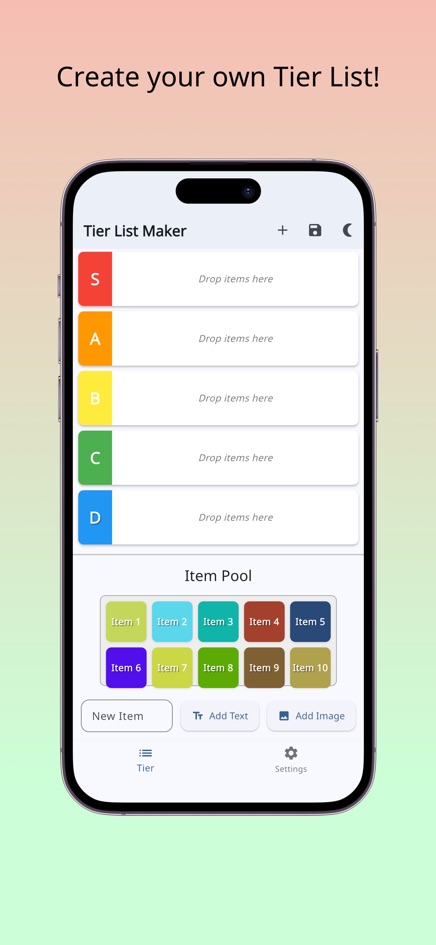
Tier keeps one working list at a time, so export a PNG before you reset. On a phone, the iPhone and Android apps can share the image straight from the share sheet.
Frequently asked questions
How do I make a tier list on my phone?
Use a tier list app or a mobile-friendly web tier maker. Add your items, drag them into the rows and export the result as an image. Rotating to landscape can give bigger drop targets in a browser.
Can I make a tier list for free?
Yes. Paper, spreadsheets and many tier list makers, including the Tier web version, can be used without paying.
How many tiers should a tier list have?
Six (S to F) is the standard, but use as many as your list needs. Short lists often work better with three or four.
Can I use pictures in Tier?
Yes. Any item can be text or an image from your device. Images stay on your device and are only included in the PNG you export.
Can I save several tier lists in Tier?
Tier keeps one working list at a time. Export each finished list as a PNG before starting another.