Tier - Tier List Maker


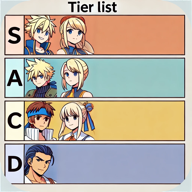
Tier is a tier list maker. A tier list ranks things into labeled rows, traditionally S at the top for the very best, followed by A, B, C, D and F. It is a popular way to share opinions about game characters, weapons, anime, films, snacks, coffee shops or almost anything else that people like to argue about.
You start with six colored tiers and an item pool at the bottom. Add items as short text or as pictures from your device, then drag each one into the tier where you think it belongs. Rename tiers, change their colors, add new ones or delete the ones you do not need, so the same tool works for a classic S-to-F list or something like "Must try / Maybe / Never again".
When the list is finished, download it as a PNG image and share it wherever you like. Your current list is kept in the browser, so you can come back and keep rearranging.
The app runs entirely in your browser. What you enter is saved only on this device.
How to use Tier
- Start with the default tiers. The board opens with S, A, B, C, D and F tiers in red, orange, yellow, green, blue and purple, plus an Item Pool below them.
- Add items. Use the New Item field to type a name and add it to the pool. To use a picture, edit an item and choose Pick Image to select one from your device; Switch to Text turns it back into text.
- Drag items into tiers. Drag any item from the pool and drop it on a tier row. You can also move items between tiers or back to the pool.
- Customize the tiers. Tap a tier label to rename it, choose a new color from the palette, or delete the tier. Use Add Tier to create extra rows.
- Edit or remove items. Tap an item to change its text or image, or delete it.
- Reset when needed. Reset Tiers Only restores the default S to F tiers and moves all items back to the pool. Reset All clears everything to start a fresh list.
- Export your list. Tap the export button and confirm. The whole tier list is downloaded as a PNG image you can post or send.
Features
- Default S, A, B, C, D and F tiers with distinct colors
- Add, rename, recolor and delete tiers
- Text items or image items from your device
- Drag and drop between tiers and the item pool
- Edit or delete individual items
- Two reset options: tiers only, or everything
- Download the finished tier list as a PNG image
- Light and dark mode
- Current list and images saved in your browser
How to make a tier list people want to read
Where tier lists come from
Tier lists grew out of competitive gaming communities, especially fighting games, where players ranked characters by how strong they were in tournament play. The letter grades borrow from school grading, with S added above A to mean "special" or exceptional, a convention common in Japanese games and media. Today the format is used for everything from movies to fast food.
Decide what you are ranking by
A tier list is only as clear as its criteria. "Best" can mean strongest, most fun, best value, most nostalgic or most beginner-friendly, and these can produce very different lists. Say what you mean in the title or the tier names, for example "Characters ranked for new players" or "Snacks I would buy again".
Keep the scope consistent. Ranking a game's characters for one version, or restaurants in one neighborhood, avoids comparisons that do not quite make sense.
Use the tiers on purpose
S should be rare. If half the items are in S, the tier stops meaning anything. A common approach is to place a few clear standouts first, then a few obvious bottom picks, and fill in the middle relative to those anchors.
Within a tier, many people order items left to right from strongest to weakest, which adds a little extra detail without needing more rows.
Custom tiers
Letters are not required. Labels like "Daily driver / Weekend / Never", "Loved it / Fine / Not for me" or simply numbers can be clearer for a general audience. Pick colors that run from warm to cool, or from bright to muted, so the order is readable at a glance even in a small image.
Images and readability
Pictures make tier lists much more recognizable, especially for characters or products. Square, tightly cropped images with the subject centered tend to look best. Avoid images with small text, which becomes unreadable when the list is shrunk on social media. For text items, keep names short.
Before sharing, check the exported PNG on a phone screen. If it looks crowded, split it into two lists or remove items that do not add much.
Frequently asked questions
Where is my tier list saved?
Your current list, including any images, is saved only in this browser on this device, with no account. Clearing your browser data deletes it.
How do I share my tier list?
Use the export button. The list is downloaded as a PNG file that you can attach to a post or message.
Can I keep several tier lists?
The app keeps one working list at a time. Export a PNG of each finished list before resetting to start another.
Are my images uploaded anywhere?
No. Images stay inside your browser's storage and are only included in the PNG you choose to download.
Dragging is awkward on my phone. Any tips?
Touch the item and drag it slowly, then let go when it is over the row of the tier you want. Rotating to landscape can give larger drop targets.
How is the web version different from the phone app?
Making the list works the same way. On a phone, the app can share the image directly through the share sheet; in the browser the image is downloaded as a file instead.
Limitations of the web version
- One tier list is saved at a time
- Export is a PNG image only; lists cannot be exported or imported as data
- Large images use browser storage space
- No collaboration or sync between devices
Phone app
Tier is also available as an app for phones and tablets:
App Store (iPhone, iPad) Google Play (Android)